HW3 - Tic Tac Toe
Logistics
Due: Wednesday Jan 28th at 10pm
You may work alone or with a partner, but you must type up the code yourself. You may also discuss the assignment at a high level with other students. You should list any student with whom you discussed each part, and the manner of discussion (high-level, partner, etc.) in a comment at the top of each file. You should only have one partner for an entire assignment.
You should submit your assignment as a tictactoe.py file on Gradescope along with a readme.txt.
As with all assignments in this course, for each file in this assignment, you are expected to provide top-level comments (lines that start with # at the top of the file) with your name and a collaboration statement.
You need a collaboration statement, even if just to say that you worked alone.
Here is the Gemini Helper Bot for Homework 3.
Getting started:
You will do all of your work in a single file, tictactoe.py. You should download this starter code, double-click to “unzip” it, and work within the resulting HW3Starter folder. The folder includes a “skeleton” of tictactoe.py as well as graphics.py.
You will only be filling in existing function declarations within tictactoe.py, though you are welcome to make additional smaller functions if you wish.
Goals
The primary goal for this assignment is to give you practice working with if statements and functions. You will additionally get more practice working on bigger programs.
Parts of this assignment:
Core:
Advanced:
Assessment
The core requirements are:
- correct implementation of Part 1 (
get_cell_string,print_row) and Part 2 (draw_x,draw_o) - Header with at least five lines that start with
#for each file - Basic style that can be checked automatically (not complete!)
- Collaboration statement at the top of each file (even if it just says that you worked alone)
- A
readme.txtthat includes your reflection (detailed below)
The advanced requirements are:
- Satisfy the core requirements
- correct implementation of Part 3 (
is_valid_grid_cell,update_board_state) and Part 4 (is_draw,did_player_win_with_row,did_player_win_with_column,did_player_win_with_diagonal) - Descriptive headers for all files
- Descriptive variable names that follow
snake_case - Good line grouping and spacing (i.e. use blank newlines to group your lines of code)
- Make sure not to have code that computes the right answer by doing extra work (e.g., leaving a computation in a for loop when it could have occurred after the for loop, only once).
- Comments should be used for anything complex, and typically for chunks of 3–5 lines of code, but not every line.
Core
Part 1: Keeping track of game state
As you look through the code, note that anything with a # TODO is something you’ll need to complete. If you have questions about how all of these functions work together, just ask!
For this assignment, we will represent the 9 grid locations as a nested list, called board_state. This list contains three lists, one for each row. Each inner list contains three elements, one for each position within the row. These elements are either 0 (no marker placed), 1 (player 1 placed an “x”), or 2 (player 2 placed an “o”).
Here is an example:
# A board where there is:
#   - an "o" in the upper left grid cell,
#   - an "x" and an "o" in the middle row, and
#   - an "x" in the middle of the bottom row.
[[2, 0, 0],
 [1, 2, 0],
 [0, 1, 0]]
For this first part, you will implement the functions needed by the print_board_state function.
The print_board_state function is already written for you (feel free to look through it in the starter code). You should fill in the functions that it needs: print_row and get_cell_string.
Note: For print_row, you should iterate through the list and generate the appropriate characters for each piece (or empty spot) with a | between each piece. There are multiple ways of achieving this that are reasonable. See below for an example of what the output should look like.
You can test your functions using test_print_board_state(). By default, this is the only code not commented-out in the if __name__ == "__main__": if statement, so it is all that will run.
if __name__ == "__main__":
    # Part 1
    test_print_board_state()

    # Part 2
    #test_draw_player_marker()

    # Part 3
    #test_placing_valid_markers()

    # Part 4
    # play_game()
Here is the example testing results (your code should give the same output):
Testing get_cell_string(): passed

Testing print_board_state() now.
The board_state list is: [[2, 0, 0], [1, 2, 0], [0, 1, 0]]

o| |
-----
x|o|
-----
 |x|

The expected board state is:

o| |
-----
x|o|
-----
 |x|
Part 2: Placing pieces
For this next part, you will provide the functionality needed by the draw_player_marker function.
This function draws a player marker in the grid cell (grid_x, grid_y). The win parameter is an instance of the GraphWin class, and player is either 1 or 2.
To provide this functionality, you should fill in the two functions: draw_x and draw_o.
-
In
draw_o, your code should draw an “o” in that cell. Note that the coordinate system has again been set to work more intuitively, sogrid_xandgrid_ywill be already close to where you want to draw your “o”, you just need to decide on how to center your “o” in the square. -
In
draw_x, your code should draw an “x” in that cell. Hint:Linewill likely be helpful and again think about how to center your “x” in the square.
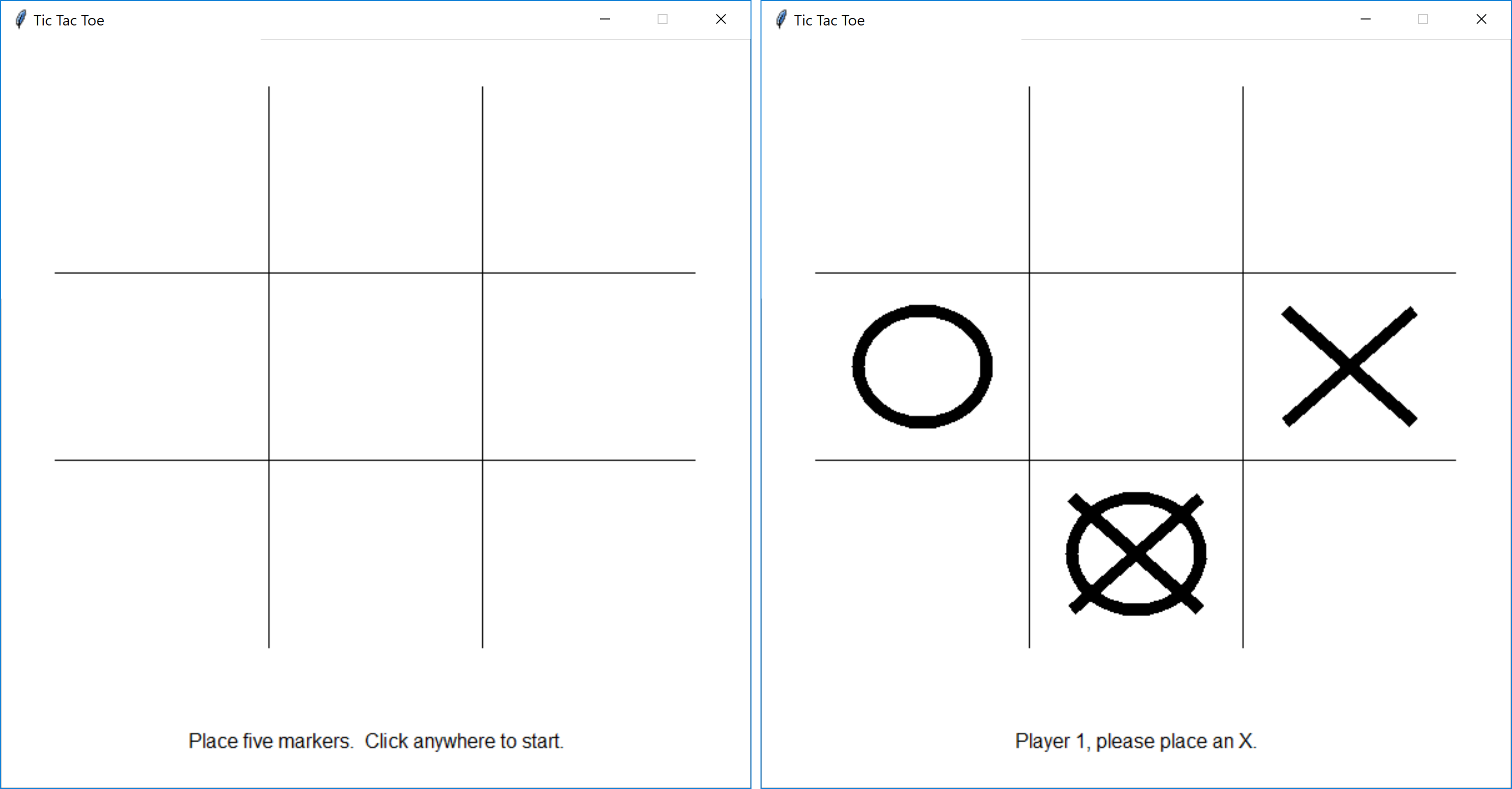
You can test your code for this part using the test_draw_player_marker function. Just comment-out the call to test_print_board_state() and comment-in the call to test_draw_player_marker():
if __name__ == "__main__":
    # Part 1
    #test_print_board_state()

    # Part 2
    test_draw_player_marker()

    # Part 3
    #test_placing_valid_markers()

    # Part 4
    # play_game()
You should be able to place five markers within the grid. Note that so far, there is no code to make sure that the user can’t place a marker in an occupied space – that comes later.
Advanced
Part 3: Checking for valid positions
Your code from Part 2 just blindly drew player markers on the board, even if there was already a marker in a given position. Now, you should fill in the is_valid_grid_cell and update_board_state functions.
Note: update_board_state requires thinking about mutating lists, which is the material for Wednesday Jan 28th. I’m sorry for not catching that when I rearranged the order of topics, but remember that you can make that update during revisions if you need to.
Once you have completed this implementation, you can test your code using the test_placing_valid_markers function. This is very similar to the test function for Part 2, except that it waits until the user clicks a valid grid cell (by calling is_valid_grid_cell), and then updates the board state using update_board_state before printing out the board state (using print_board_state).
Part 4: Ending the game
If you take a look at the function play_game, which does the actual game play, the main difference between it and the test functions for Parts 2–3 is that instead of only placing 5 pieces, it has a while loop that continues until the game is over. For this last part, you’ll implement functions that check for the game to have ended.
Part a: It’s a draw
The game ends in a draw when all grid positions are filled but no one has won. For now, you don’t have code to check for a winner, but you can use is_draw to at least end the game loop.
Implement the function is_draw. This function should assume neither player has won, and thus only check if any grid position is not marked.
You can use the actual play_game function to test this code. By default, did_player_win always returns False, so for now the game should only end once nine markers have been placed (even if a player should have won).
Part b: Checking for a victory
The game ends when a player has markers in an entire row, column, or full diagonal. This is checked in the function did_player_win, which uses three “helper” functions to do the actual checking.
For this last sub-part, you should implement all of the helper functions needed to determine if a win condition has been met: did_player_win_with_row, did_player_win_with_column, and did_player_win_with_diagonal.
Now if you test your code with the play_game function, it should end when there is a victory, and update the text label at the bottom of the window to say who won.
Reflection
Were there any particular issues or challenges you dealt with in completing this assignment? How long did you spend on this assignment? Write a brief discussion (a sentence or two is fine) in your readme.txt file.