Getting Started Lab
This is a lab assignment, so it isn’t required to complete. However, the concepts and practice will help you on both the homework and exams so I encourage you to make a serious effort on it during class and consider finishing it outside of class. If you do finish it and submit it to Moodle, you’ll earn an extra engagement credit.
Exercise 0
This is a reminder of what we did on Monday and what you should do every lab. (This link has screenshots to accompany these instructions if you want them.)
- Mount the COURSES drive by double clicking the courses Desktop icon (if you didn’t use the checkbox when you logged in)
- Create a new folder in your STUWORK folder called
Lab1 - Open VSCode
- Click and drag you
Lab1folder to the VSCode window to open it - Create a new file named
hello.py - Drag up from the bottom of the VSCode screen to open a
Terminal
Exercise 1
You’ll now test out using Gradescope.
- Navigate to Moodle, today’s class section and click on the “In Class Assignment” Gradescope link
- Upload
hello.pyto Gradescope (yes, even though it’s empty) - Notice what the autograder does when your code doesn’t work correctly
- In
hello.pytype:print(“hello world!”)- Don’t copy and paste! You should always type out Python code even if copying and pasting it is an option. Copying often introduces errors to the code because of weird spaces and it is good practice for you to start getting used to typing Python commands.
- Save
hello.py(Cmd + s) - Upload
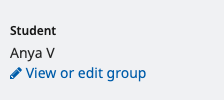
hello.pyto Gradescope again and make sure that you pass the first test case - Add your partner to the submission on Gradescope:
Exercise 2
We’ll be doing a lot with getting input from the Terminal in these first few weeks and it’s a little annoying to make sure that the formatting is just right for this sort of thing, so you’ll now get some practice.
- Make another file
hello_input.py - You can accept input from the user with the command
inputand save it to use later in a variable. Type the following into your new file:new_name = input("What is your name?") print(new_name) - Run your program by typing
python3 hello_input.pyin the Terminal. - Change your program so that it does the following when run:
python3 hello_input.py What is your name? Anya Hello, Anya! -
Upload both of your files to the Gradescope In Class Assignment to check if all the test cases are now passing.
- Try adding some extra parentheses to
hello_input.pyand see what the Style checker thinks:
new_name = (input("What is your name?"))
Let me know that you’ve submitted your Gradescope assignment. I’ll aim to give you ‘feedback’ right away so you can see what that looks like as well.
Exercise 3
Create another file experiments.py for the next two exercises.
For this exercise, predict the output, write it on your worksheet, and then type each of the following commands in VS Code. If anything happens that you don’t expect, ask about it! :)
3a: Operators on numbers
print(4)

print(5 + 3)

print(5.0 - 3.0)

print(5 * 3)

print(5 ** 3)

print(5 / 3)

print(5 // 3)

print(5 % 3)

print(int(2.718))

print(round(2.718))

print(float(2.718))

print(float(round(2.718))) # order of operations?
3b: Operators on strings
print("5" + "3")

print("5" - "3")

print("5" - 3)

print("5" * "3")

print("5" * 3)

print("5" / "3")

print(float("2.718"))

print(int("2.718"))

print(float("2,718"))
3c: Combining strings and expressions
print("4 + 3 =", 4 + 3)

print("Three 4s:", 3 * "4")

print("a=", 4-3)

print("a=" + str(4-3))
Exercise 4: Keyword parameters of print
When you call print() in Python, in addition to the expressions you want printed, you can also provide “keyword parameters” by name to change how print behaves.
4a: the end keyword parameter
The end parameter (specified by name when you call print) says how to end a print statement. By default, this is with a “newline character” (specified in Python as '\n'), meaning that the next thing printed will be on the next line. Running this code:
print("cat")
print("dog")
produces this output:
cat
dog
What do you think happens if we instead change this to use end? Predict the output of the following, then try running it:
print("cat", end="!") # try changing "!" to something else
print("dog")
4b: the sep keyword parameter
Another keyword parameter of print is called sep. What do you think the sep parameter does? Hint: sep is short for separator. Try it out using the following print statement:
print("3", "1", "4", "1", "5", sep="!") # try changing "!" to something else
Exercise 5: Assignment statements
The following program computes the volume of a sphere given its radius.
 1. # Get the radius from the user
 2. radius = input("What is the radius? ")
 3. radius = float(radius)
 4.
 5. # Compute the volume (4/3 * pi * r^3)
 6. volume = 4 / 3
 7. volume = volume * 3.14
 8. volume = volume * radius
 9. volume = volume * radius
10. volume = volume * radius
11. print("The volume is", volume, "(radius=" + str(radius) + ")")
Fill in the table on the worksheet to keep track of the values of variables over time. You can assume the user types in 10, and it’s sufficient to write fractions rather than real numbers, so you could write 4/3 instead of 1.3333333333333333 below, and 4/3 * pi instead of 4.1866666666666665.
Submission
Submit the Python files that you created and completed for the previous exercises for an extra engagement credit.
Extra
If you’d like more practice, here is a problem to solve.
Sometimes it is useful to add and subtract times. For example, if you are trying to measure a runner’s lap time, you might record the start time and the end time for the lap and use that information to find the amount of time that elapsed.
Write some code that asks the user for four integer inputs:
- The minutes of the start time.
- The seconds of the start time.
- The minutes of the end time.
- The seconds of the end time.
Your code should then calculate the difference between the end time and start time, and print out the elapsed time in minutes and seconds.
Note that the seconds should be a value between 0 and 59, which means simply subtracting minutes and seconds will not work! Think carefully about what you need to calculate here, and perhaps write out the algorithm on your worksheet or in comments before trying to code it up.
Hint: consider what you may be able to do with the // (integer division) and % (modulo) operators.
Try to come up with test input that will check for all the types of cases that your code should be able to handle (for example, input that would have messed up the strategy of just subtracting the minutes and seconds).